Why was my model rejected?
This guide was drafted with AI assistance.
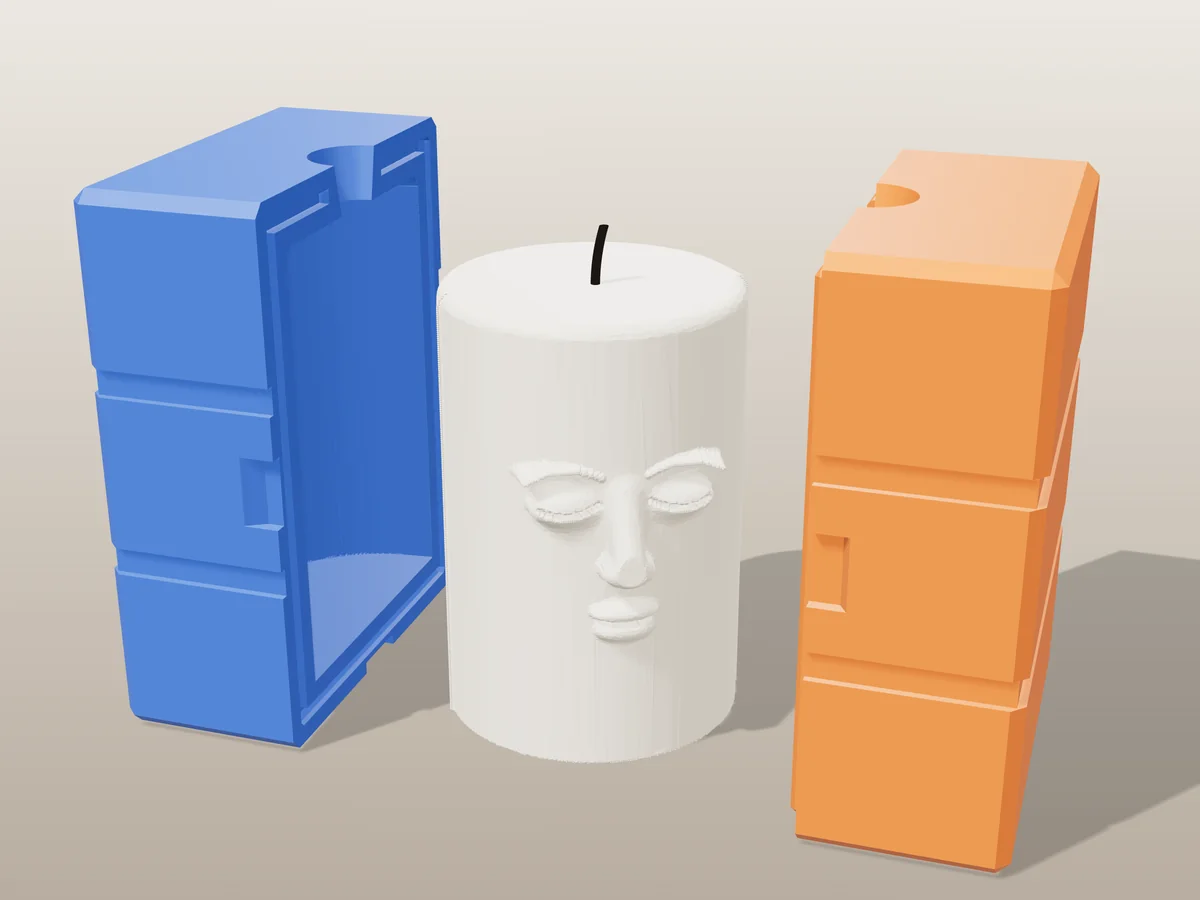
Almost every rejection is the same thing: the file is a surface, not a solid. If the popup offers “Fix it for me”, click it, that rebuilds the model and generates in one step. If it has already run once and still failed, repair the file in Optimize or re-export it as a single closed body. Your exact message is explained below.
Every message a Meshcast generator can show you, what it actually means, and the fastest way past it. Nearly all of them come down to one thing: a mold is the space around your model, so the file has to describe a solid object rather than a surface.
Before anything else: if the popup offers “Fix it for me”, use it. It rebuilds your model as a clean solid and generates in the same click, and it resolves the majority of these. It is offered once per model: if it has already run and the generation still failed, the file needs the deeper fixes below.
| What the message says | What it actually means | First thing to try |
|---|---|---|
| Isn't watertight | The surface has holes, so there is no inside | Fix it for me |
| Couldn't process this model | The geometry broke the boolean engine | Simplify, then retry |
| Could not be repaired in 60 seconds | Repair ran out of time, not out of options | Decimate first |
| Took too long to respond | The generation itself timed out | Fewer triangles, retry |
| Still too large to upload | Over the file size limit even after reduction | Reduce the STL |
| Too small to build a mold around | Millimetres where the file meant centimetres | Rescale the model |
| One half came out empty | The parting plane missed the model | Move the seam |
| Doesn't look like a valid STL | Wrong format, or a corrupted download | Re-export it |
| Couldn't read a clear shape | An image the tracer could not silhouette | Raise the contrast |
Your STL isn’t watertight
It has gaps, holes, or surfaces that don’t join cleanly.
This is the most common one by a distance. A mold is the space around your model, so the generator has to know what is inside and what is outside. A mesh with holes has no answer.
- Click “Fix it for me” in the popup. We rebuild the model as a solid and generate straight away. It works for most sculpted and scanned files.
- If we already rebuilt it once and it still failed, the file has a deeper problem than holes: overlapping shells, or several separate pieces stacked together. Open it in Optimize, which shows what is wrong.
- Re-export as one closed body. In Blender: select all, Mesh › Clean Up › Merge by Distance, then export as a single object.
We couldn’t process this model
Shown for “memory access out of bounds” and similar engine errors.
The geometry crashed the engine outright, which almost always means self-intersecting or corrupt triangles rather than anything you did wrong.
- Use “Fix it for me”, the same rebuild fixes most of these.
- If it repeats on the same file, reload the page first: after this error the engine needs a fresh start.
- Very dense scans are the usual source. Run it through Optimize to simplify, then try again.
Your model could not be repaired within the 60 second budget
From the server-side tools (candle, plaster, silicone, vase, press).
We try to repair every upload before molding it. Sixty seconds is the limit, and a mesh that needs longer is badly enough broken that repairing it would change the shape anyway.
- Repair it yourself in Optimize and upload the result.
- Simplify first. Repair time depends on how tangled the mesh is, not how big it is: a 20,000-triangle scan full of self-intersections is far worse than a clean 200,000-triangle model.
Your .3mf is a slicer project, not a model
A .3mf saved out of Bambu Studio, Orca or PrusaSlicer is a project. It can contain a dozen objects: your sculpture, plus painted supports, helper bodies, negative volumes and modifier meshes. You see one thing on the plate because the slicer knows which is which. The generator does not, so it molds everything.
| Symptom | What is actually happening |
|---|---|
| The mold surrounds much more than your model | Helper objects are being included in the shape to be molded |
| “Too large for the print bed” on a small model | The bounding box spans every object in the project, not just yours |
| Generation fails with no obvious reason | A modifier or negative volume is not a closed solid on its own |
The fix: export just the object you want. In Bambu Studio and Orca, right-click the object on the plate and choose Export as STL; in PrusaSlicer, Export object as STL. Delete the helper objects first if you would rather keep the 3MF. Then upload that.
The generator took too long to respond
Also “Couldn’t reach the generator”.
The first is our server still working when your browser gave up; the second is the connection dropping, usually on mobile.
- Try again. Nothing is charged for a failed generation.
- If it keeps happening on one model, it is genuinely heavy: use Model detail: Faster in Advanced, or simplify in Optimize.
That model was still too large to upload
A 413, after we already reduced it automatically.
Usually the repair pass rebuilt the mesh denser than it started, which happens with badly broken scans.
- Switch Model detail to Faster in Advanced.
- Or reduce it once in Optimize and upload that.
This model is too small to build a mold around
Also “too thin to mold”.
The mold needs real wall thickness around your model. Below a few millimetres per side there is nothing left to print.
- Drag Model size up in the sidebar. Aim for at least a few millimetres on every axis.
- Check the units your file was exported in. A model exported in metres arrives a thousand times too small.
One half came out empty
Shown as “the split seam is too far off-centre”.
The parting plane moved past the edge of your model, so one side of the cut has nothing in it.
- Move Seam position back toward the middle. The slider is now limited to your model's real extent, so this is rarer than it was.
- On a very flat or very tall model, try a different cut axis.
This file doesn’t look like a valid STL
Also “No printable 3D shape found in this 3MF”.
The bytes are not the format the name claims. We now read the file's actual content, so a renamed 3MF or OBJ just works; this message means it is none of the three.
- Re-export as STL, OBJ or 3MF from wherever you made it.
- If it is a sliced print file (a Bambu, Orca or PrusaSlicer project), it holds printer instructions and no shape. Download the model file instead of the print profile.
We couldn’t read a clear shape from this image
From the image-based tools (cutter, lithophane, embosser).
The tracer needs an obvious light/dark split to find an outline.
- Use a bolder, higher-contrast picture with a plain background.
- A silhouette or logo works far better than a photo.
The mold came out incomplete, or half the model is missing
Check these first, because they explain most cases:
- A slicer project file, as above. Extra objects shift the bounding box and the split can then land outside your model.
- The parting plane sits off the model. If the seam offset is pushed past the model's extent, one half has nothing in it. Drag it back toward the centre and watch the preview.
- Not the bed setting. One report correlated with a 350 mm plate, but the printer size only drives the “does it fit” warning, never the geometry, so changing it cannot fix or cause this. Worth saying because it is the first thing people try.
- Split angle and offset on adaptive silicone. An extreme rotation can put the split where the shell has nothing to hold.
If none of that is it, the fastest route to a fix is a report that can be reproduced. Send:
Send these
- The original STL or 3MF, exactly as you uploaded it
- Which tool, by URL
- Scale and Shrink %
- Gap and wall thickness
- Split angle and split offset
- Number of shell parts, and whether easy-release is on
- Your printer bed size
Why each one
- The file is where unreproducible bugs almost always live
- The tools share very little code, so the wrong one wastes a day
- These are the exact inputs that decide where the split lands
- Bed size changes the size check and, in these reports, possibly more
Without the file and the settings this is genuinely not reproducible, which is why it is still open. With them it is usually solved the same day.
Still stuck
Send us the file through support and say which tool you were using. A real file beats a description every time, and a broken mesh usually tells us in seconds what no screenshot can.
Common questions
"Your STL isn’t watertight" - what does it mean?
This is the most common one by a distance. A mold is the space around your model, so the generator has to know what is inside and what is outside. A mesh with holes has no answer. Click “Fix it for me” in the popup. We rebuild the model as a solid and generate straight away. It works for most sculpted and scanned files.
"We couldn’t process this model" - what does it mean?
The geometry crashed the engine outright, which almost always means self-intersecting or corrupt triangles rather than anything you did wrong. Use “Fix it for me”, the same rebuild fixes most of these.
"Your model could not be repaired within the 60 second budget" - what does it mean?
We try to repair every upload before molding it. Sixty seconds is the limit, and a mesh that needs longer is badly enough broken that repairing it would change the shape anyway. Repair it yourself in Optimize and upload the result.
"The generator took too long to respond" - what does it mean?
The first is our server still working when your browser gave up; the second is the connection dropping, usually on mobile. Try again. Nothing is charged for a failed generation.
"That model was still too large to upload" - what does it mean?
Usually the repair pass rebuilt the mesh denser than it started, which happens with badly broken scans. Switch Model detail to Faster in Advanced.
"This model is too small to build a mold around" - what does it mean?
The mold needs real wall thickness around your model. Below a few millimetres per side there is nothing left to print. Drag Model size up in the sidebar. Aim for at least a few millimetres on every axis.
"One half came out empty" - what does it mean?
The parting plane moved past the edge of your model, so one side of the cut has nothing in it. Move Seam position back toward the middle. The slider is now limited to your model's real extent, so this is rarer than it was.
"This file doesn’t look like a valid STL" - what does it mean?
The bytes are not the format the name claims. We now read the file's actual content, so a renamed 3MF or OBJ just works; this message means it is none of the three. Re-export as STL, OBJ or 3MF from wherever you made it.
"We couldn’t read a clear shape from this image" - what does it mean?
The tracer needs an obvious light/dark split to find an outline. Use a bolder, higher-contrast picture with a plain background.