Why an AI 3D model will not print, and how to fix it
This guide was drafted with AI assistance.
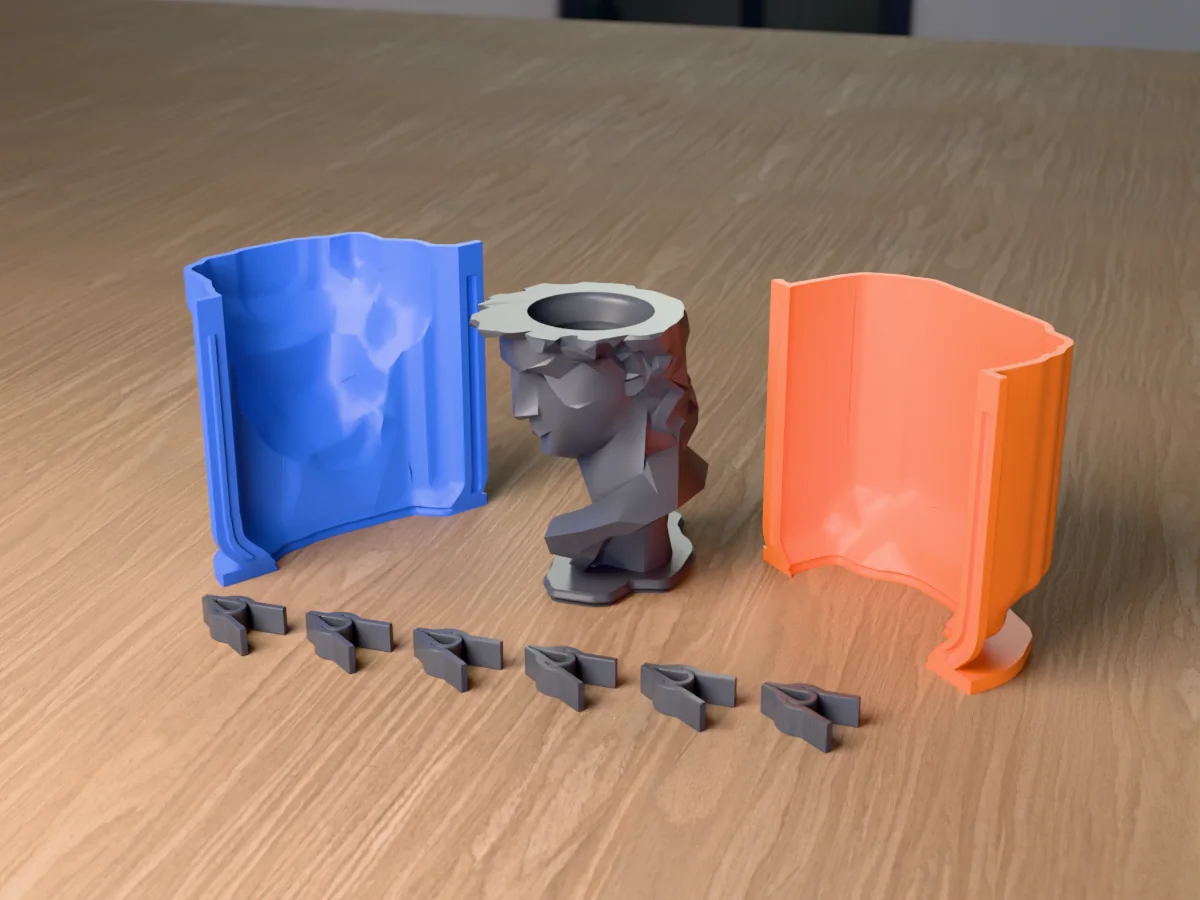
AI image-to-3D tools (Meshy, Tripo, Hunyuan3D, PrintU and the rest) make models that look right on screen and fail on the printer: holes, floating specks, hair thinner than a nozzle, open mouths, a tilted head with no flat base, and huge files. Each has a fix in Blender or your slicer. For heads from a photo, Meshcast's head generator does all of them on every head before you download.
The short answer
An image-to-3D model is a guess at a surface, made for a screen. A printer needs a closed solid with walls it can lay down and a flat side to stand on. Most failures come from that gap, and they are the same few every time.
The eight usual problems
| Problem | What you see | Fix |
|---|---|---|
| Not watertight (holes) | Slicer warns "non-manifold", walls missing | Merge by distance, fill holes, or remesh |
| Floating specks | Tiny islands around the model, failed blobs on the bed | Keep the largest shell, delete the rest |
| Hair strands and thin ears | Gaps in the slice preview, broken tips | Thicken, or regenerate with "solid sculpted hair" |
| Open mouth and deep eye sockets | Cavities that print as holes or need supports inside | Fill the cavity, shallow the sockets |
| Tilted, no flat base | Head looks up, falls over, needs supports everywhere | Level it, cut flat under the neck |
| Wrong size | Arrives at 1 mm or 1 m, or a fixed 50 mm | Scale to the height you want in mm |
| Too many triangles | A 30 to 100 MB file, slicer crawls | Decimate to 200,000 to 500,000 triangles |
| Texture instead of print colours | Hundreds of shades, nothing a printer can do | Reduce to a few filament colours and paint regions |
Fixing it by hand
- Blender: import the GLB or STL, Edit Mode, select all, Mesh › Clean Up › Merge by Distance, then Select › Select Loops › Select Boundary Loop and fill. If the mesh is a mess, a Remesh modifier (voxel, 0.3 to 0.5 mm) rebuilds it closed, at the cost of fine detail.
- Loose parts: Mesh › Separate › By Loose Parts, keep the biggest object, delete the rest.
- Thin bits: the 3D Print Toolbox add-on marks walls under a threshold; set it to 0.8 to 1 mm for a 0.4 mm nozzle.
- Base: rotate the head level, then a Boolean cut with a large box just under the jaw gives a flat bottom.
- Size and file: scale to the height you want, then a Decimate modifier (Collapse) down to a few hundred thousand faces. The STL file size guide covers this.
- Slicer last: Bambu Studio, OrcaSlicer and PrusaSlicer all offer to repair on import; they close small holes but will not fix a bad base or thin hair.
Letting a tool do it
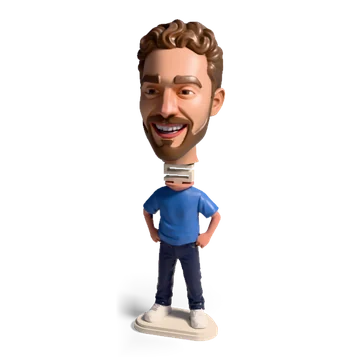
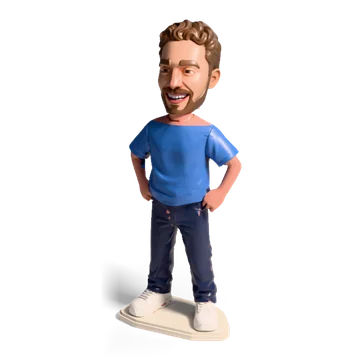
- For heads from a photo: the Meshcast head generator makes every head watertight, keeps the largest piece, stands a head tilted back upright, fills an open mouth and flags thin spots, loose pieces and a part too big for your printer before you download.
- For any model you want to mold: the Meshcast mold tools repair the upload with "Fix it for me" before they build the mold. Why a model gets rejected lists every message and what it means.
- Meshy sells Auto Repair as a paid add-on; Hunyuan3D and Tripo leave the repair to you.
Heads and faces in particular
Faces are the hardest case, for three reasons. The details that make someone recognisable (eyelids, lip edges, nostrils) are under a millimetre at figure size. Hair comes out as strands with deep slots between them. And the back of the head is guessed from a front photo.
- Ask for printable shapes up front. Prompts that ask for "chunky sculpted hair locks, thick ears close to the head, no deep eye sockets" give a mesh that needs less repair. The head generator's prompts do this for you.
- Give it the back. A model built from several views has real hair at the back. The head generator draws the back and both sides before the 3D step, and takes up to three more photos.
- Print it big enough. Below about 50 mm tall a face loses its eyes at a 0.4 mm nozzle; 70 to 100 mm with 0.12 mm layers is the sweet spot.
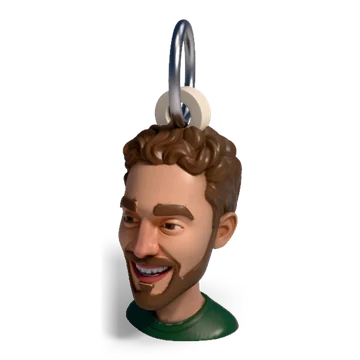
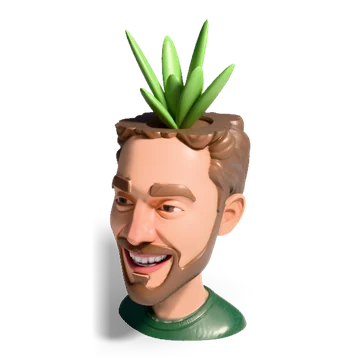
What a photo can become
Open the head generator →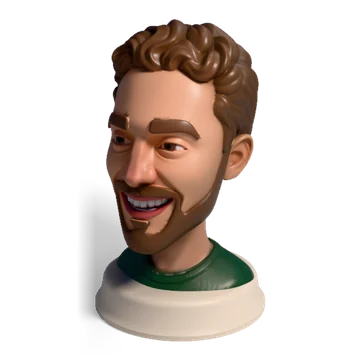

Questions
Why does my AI-generated STL fail in the slicer?
Usually because the mesh is not closed (holes or non-manifold edges), carries floating specks, or has parts thinner than the nozzle can print, like hair strands. A head may also be tilted with no flat base. Close the mesh, keep the biggest piece, thicken thin parts and cut a flat base.
How do I make an AI 3D model watertight?
In Blender: Merge by Distance, fill the boundary loops, and if that is not enough, a voxel Remesh modifier at 0.3 to 0.5 mm. Slicers also offer a repair on import that closes small holes. For heads, the Meshcast head generator makes every head watertight automatically.
What size should I print an AI head at?
70 to 100 mm tall with 0.12 mm layers keeps the eyes and lips readable on a 0.4 mm nozzle. Under about 50 mm the face details are smaller than the nozzle.
Which AI 3D generator gives the most printable models?
The ones that repair the mesh for you. General tools like Meshy, Tripo and Hunyuan3D leave most of it to you or charge for it. For heads from a photo, the Meshcast head generator repairs, levels and checks each head as part of the build.
Made by meshcast.app. Steps tested in Blender 4.x and current Bambu Studio, OrcaSlicer and PrusaSlicer; menu names can move between versions. Questions? Email us.